Step-by-step process for cloud storage User account Disable & Enable.
Step 1. Login to cloud storage.
The first step is to login to your cloud storage account, this can typically be accessed by going to http://demo.cloudstorage.link/
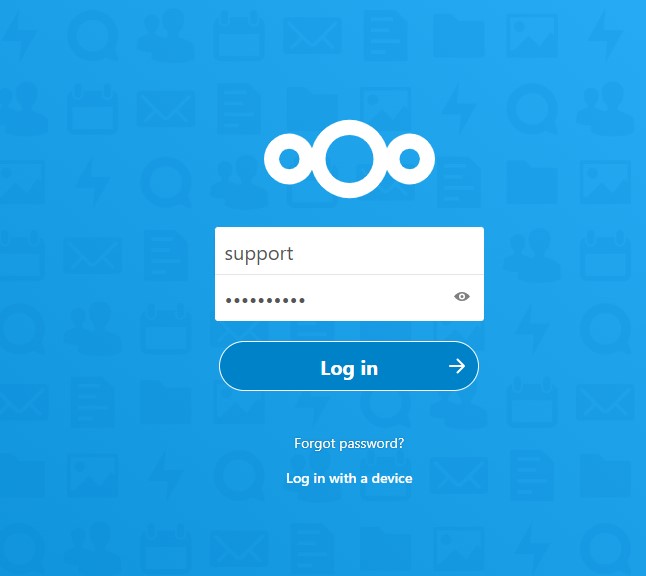
Your cloud storage account Login Interface should look like this.
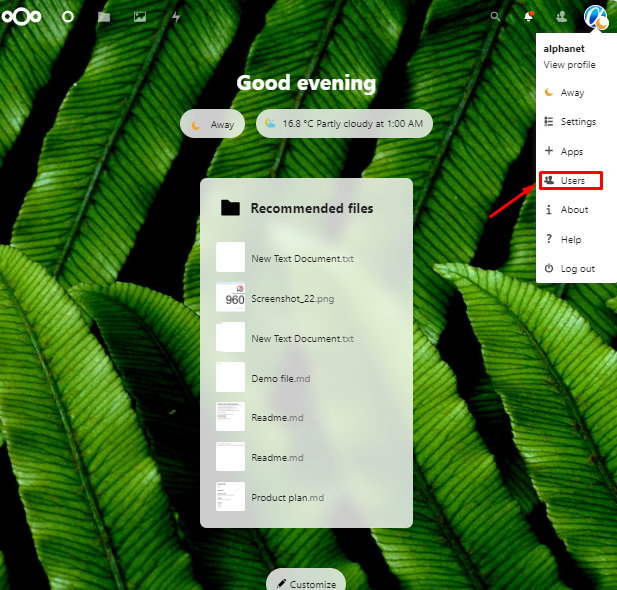
Step 2. After logging in to your cloud storage account, the homepage should look like this. Please click on your cloud storage account profile icon

Step 3. After clicking on your cloud storage account profile icon click on the User option.
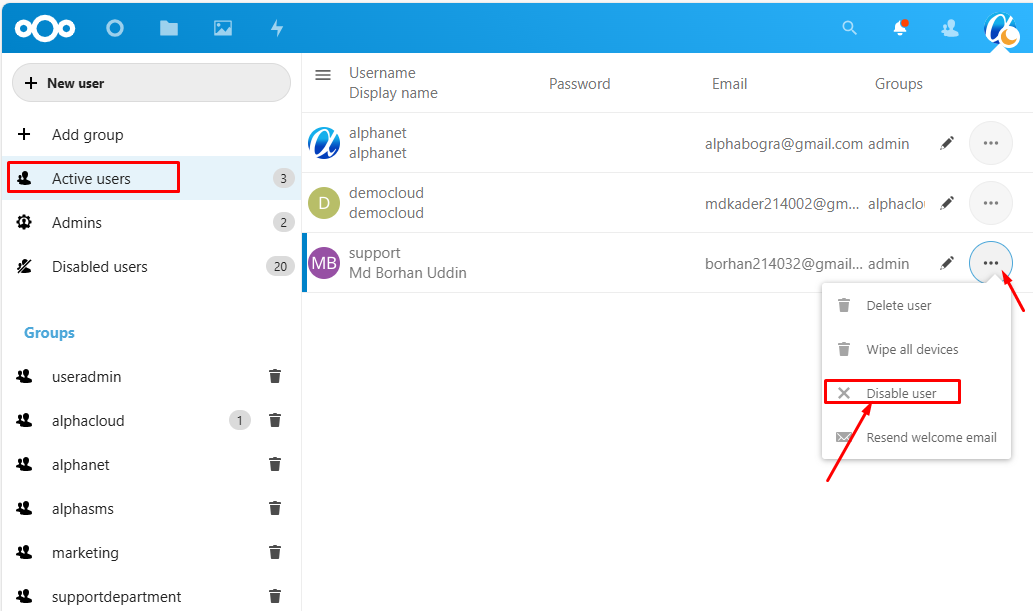
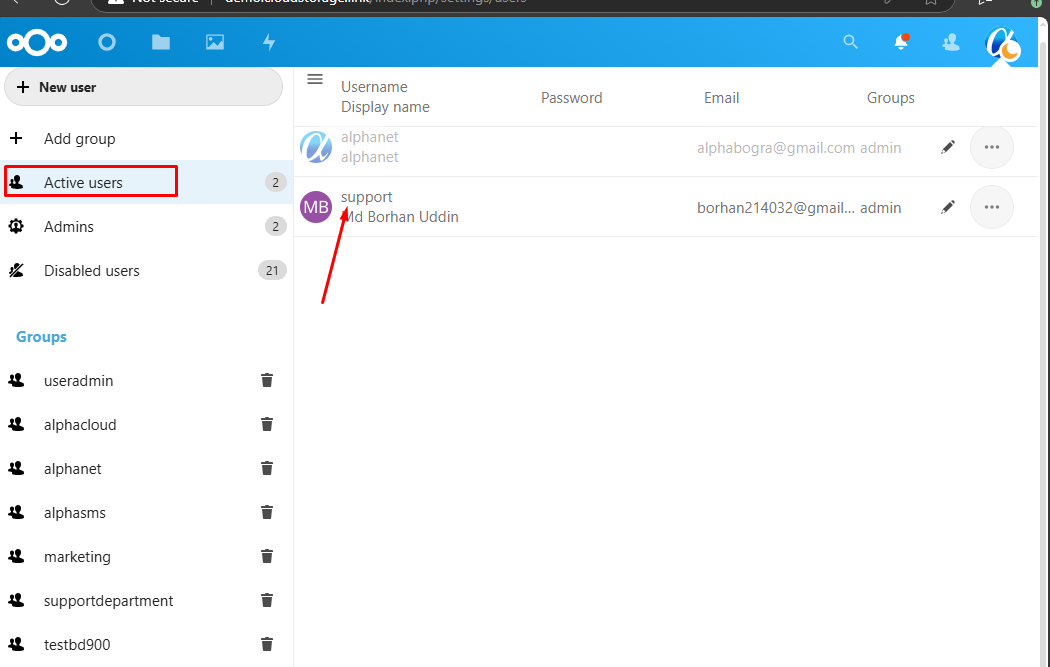
Step 4. Navigate to the "Active User" Please Search for the user you want to disable. Disable the account by clicking on the "..." icon.
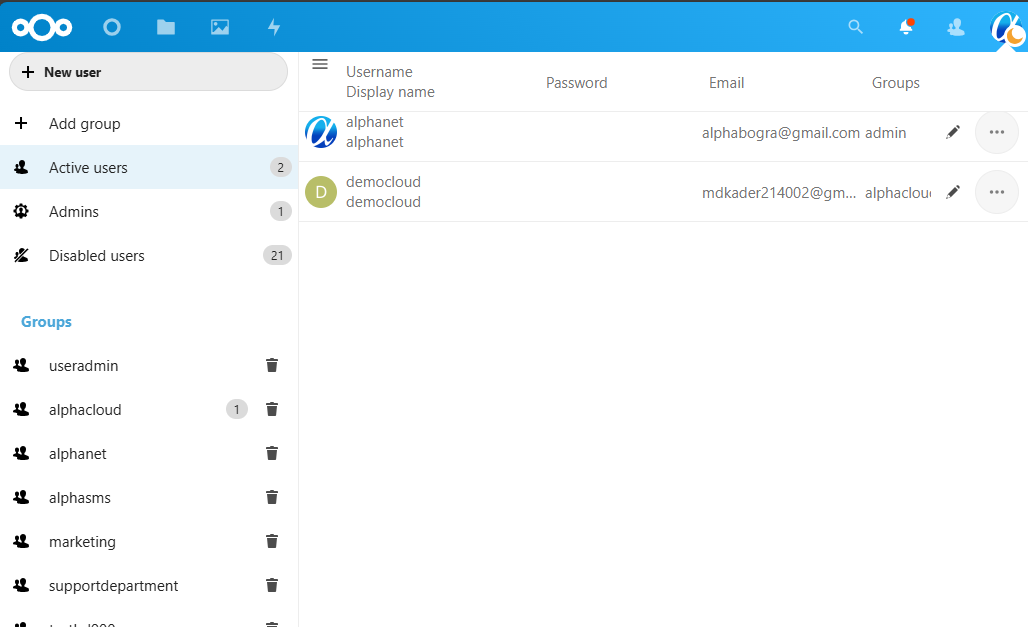
After disabling the account, you will not be able to see users from the active account.
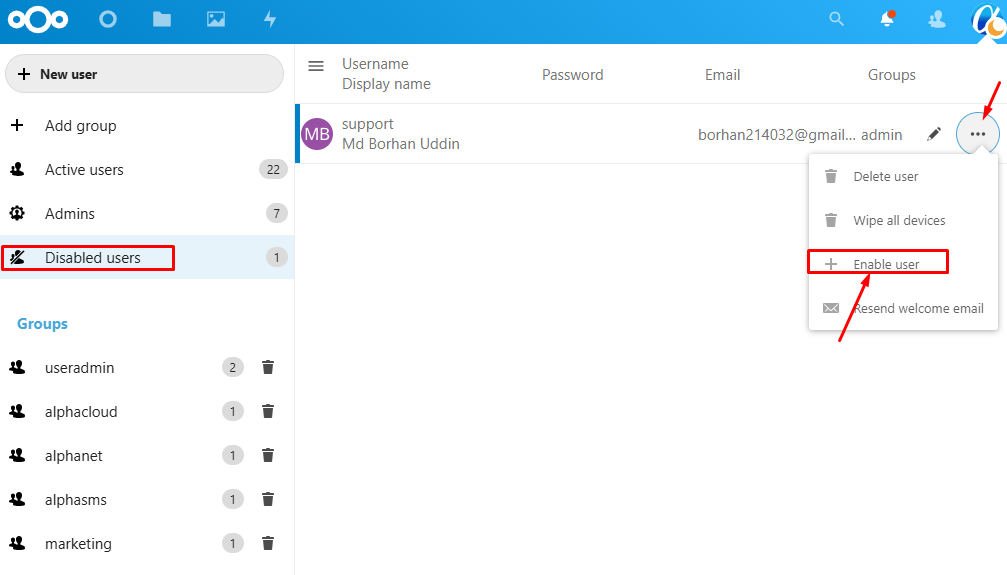
Step 5. Navigate to the "Disabled User" Please Search for the specific user & Enable the account by clicking on the "..." icon.
Screenshot file one.
Screenshot file two.
Congratulations !! Now you know How to Cloud Storage User Disable & Enable.
